






How to Connect AnyCast to TV: The Complete 2025 Setup Guide

If you're trying to figure out how to connect your AnyCast device to a TV, you're in the right place. Whether you want to stream videos, mirror your phone screen, or give a presentation, AnyCast makes wireless display easy, even without a smart TV.
In this detailed guide, you'll learn how to set up AnyCast on your TV, connect it with Android, iPhone, or Windows devices, and solve common issues. This post is written from real-world experience to help you avoid frustration and get your screen mirroring working smoothly.
What is AnyCast and Why Should You Use It?
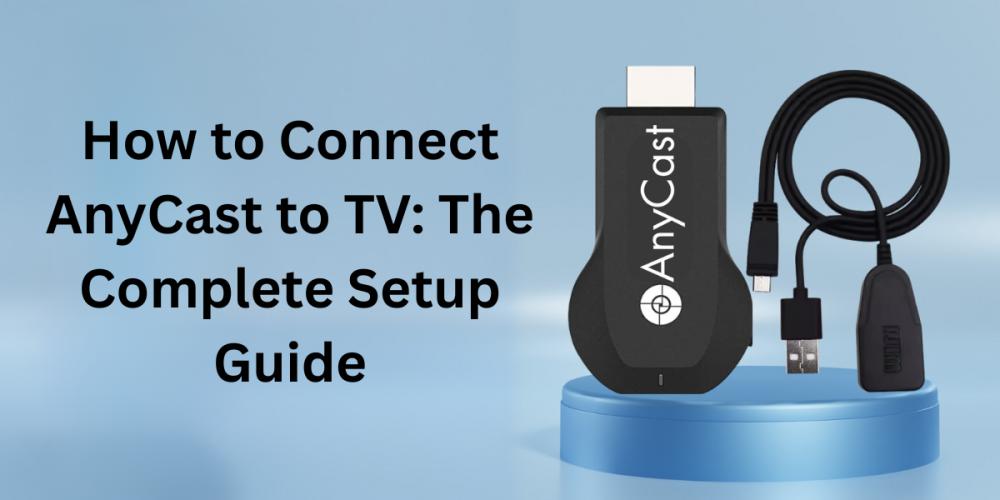
AnyCast Device is a portable wireless display dongle that plugs into your TV’s HDMI port. It allows you to mirror or cast content from your smartphone, tablet, or laptop to the big screen. It works with Miracast, DLNA, and AirPlay protocols, making it compatible with Android, iOS, Windows, and macOS devices.
Benefits of using AnyCast:
- Works with both smart and non-smart TVs
- Compatible with most Android, iPhone, and Windows devices
- Affordable alternative to Chromecast or Apple TV
- No subscription or app required
- Easy setup with plug-and-play functionality
How to Connect AnyCast to TV: Step-by-Step Instructions
Before starting, ensure your TV has an available HDMI and USB ports (or use a wall adapter for power). Also, keep your Wi-Fi network name and password ready.
Step 1: Plug in the AnyCast Device
- Insert the AnyCast dongle into an available HDMI port on your TV.
- Connect the USB cable to power the device using a TV USB port or an external USB charger.
- Switch your TV’s input source to the correct HDMI port where AnyCast is connected.
You should now see the AnyCast boot screen with a network name (SSID), IP address, and QR code.
Step 2: Switch Mode Based on Device Type
AnyCast supports two main modes:
- Miracast/DLNA mode for Android and Windows
- AirPlay mode for iOS and macOS
To switch between modes, press the button on the side of the AnyCast dongle until the correct screen appears.
Also Read: The Ultimate Guide to Choosing the Best USB Portable Fan
How to Connect an Android Phone to AnyCast
If you're using an Android phone, follow these steps to mirror your screen wirelessly:
- Make sure your Android phone and AnyCast are on the same Wi-Fi network.
- On your phone, go to Settings > Connections > Cast, Smart View, or Screen Mirroring (the name varies by manufacturer).
- Select the AnyCast device from the available list.
- Allow screen sharing or mirroring if prompted.
Once connected, your phone screen will appear on your TV in real-time.
Tip: If the AnyCast device doesn’t show up, double-check that you're on the same network and that the dongle is in Miracast mode.
How to Connect iPhone or iPad to AnyCast
To connect an iOS device like an iPhone or iPad:
- Ensure AnyCast is in AirPlay mode and connected to your home Wi-Fi network.
- On your iPhone or iPad, connect to the same Wi-Fi network.
- Open the Control Center by swiping down from the top right.
- Tap on Screen Mirroring.
- Choose your AnyCast device from the list.
Your iOS screen should now be visible on the TV.
Important: iOS screen mirroring only works in AirPlay mode. If you're seeing the Miracast screen, press the dongle’s button to switch to the correct mode.
How to Connect a Windows Laptop to AnyCast
Windows users can also connect their laptops wirelessly:
- Ensure your laptop supports Miracast (most Windows 10/11 devices do).
- Press Windows key + K to open the Connect panel.
- Select the AnyCast device from the list.
- Choose to duplicate or extend the screen as needed.
If you don’t see the device, go to Settings > Display > Connect to a wireless display and try again.
Common Problems and How to Fix Them
|
Issue |
Solution |
|
No signal on TV |
Check the HDMI source and USB power connection |
|
AnyCast not detected |
Ensure both devices are on the same Wi-Fi network |
|
iPhone not connecting |
Switch AnyCast to AirPlay mode |
|
Laggy or delayed screen |
Use 5GHz Wi-Fi if possible and keep devices close |
|
Unable to stream Netflix |
iOS blocks DRM content mirroring; use Android for better results |
FAQs: How to Connect AnyCast to TV
Do I need Wi-Fi to use AnyCast?
Yes. For full functionality, both your phone and AnyCast must be connected to the same Wi-Fi network. Some modes support direct connection, but streaming apps require internet access.
Can AnyCast work with a non-smart TV?
Yes. As long as your TV has an HDMI port, you can use AnyCast to turn it into a smart display.
Why is my screen mirroring not working?
Check that:
- Both devices are on the same network
- You selected the correct mode (AirPlay vs. Miracast)
- The dongle is powered properly
Can I watch Netflix or Amazon Prime with AnyCast?
Netflix and Prime may not work with iOS due to DRM restrictions. Android users have a better experience mirroring streaming apps through Miracast.
Is AnyCast better than Chromecast?
It depends on your needs. AnyCast is ideal for full-screen mirroring and works on multiple platforms. Chromecast focuses on casting specific content and integrates better with Google services.
Final Thoughts: Is AnyCast Worth It?
If you need a simple and cost-effective way to mirror your screen to a TV, AnyCast is a solid option. It works across devices and doesn't require a smart TV or expensive subscriptions. With proper setup, it delivers smooth screen sharing for videos, presentations, games, and more.
To get the best experience:
- Use a fast and stable Wi-Fi connection
- Make sure both devices are in close range
- Keep your dongle firmware updated when possible
This guide was created to help users quickly and confidently connect AnyCast to their TV, based on hands-on use and proven methods. You can bookmark or share it for future reference.


